




Smart monitoring
Take control with an intuitive mobile app designed for seamless monitoring and control of your Calpeda pump systems.
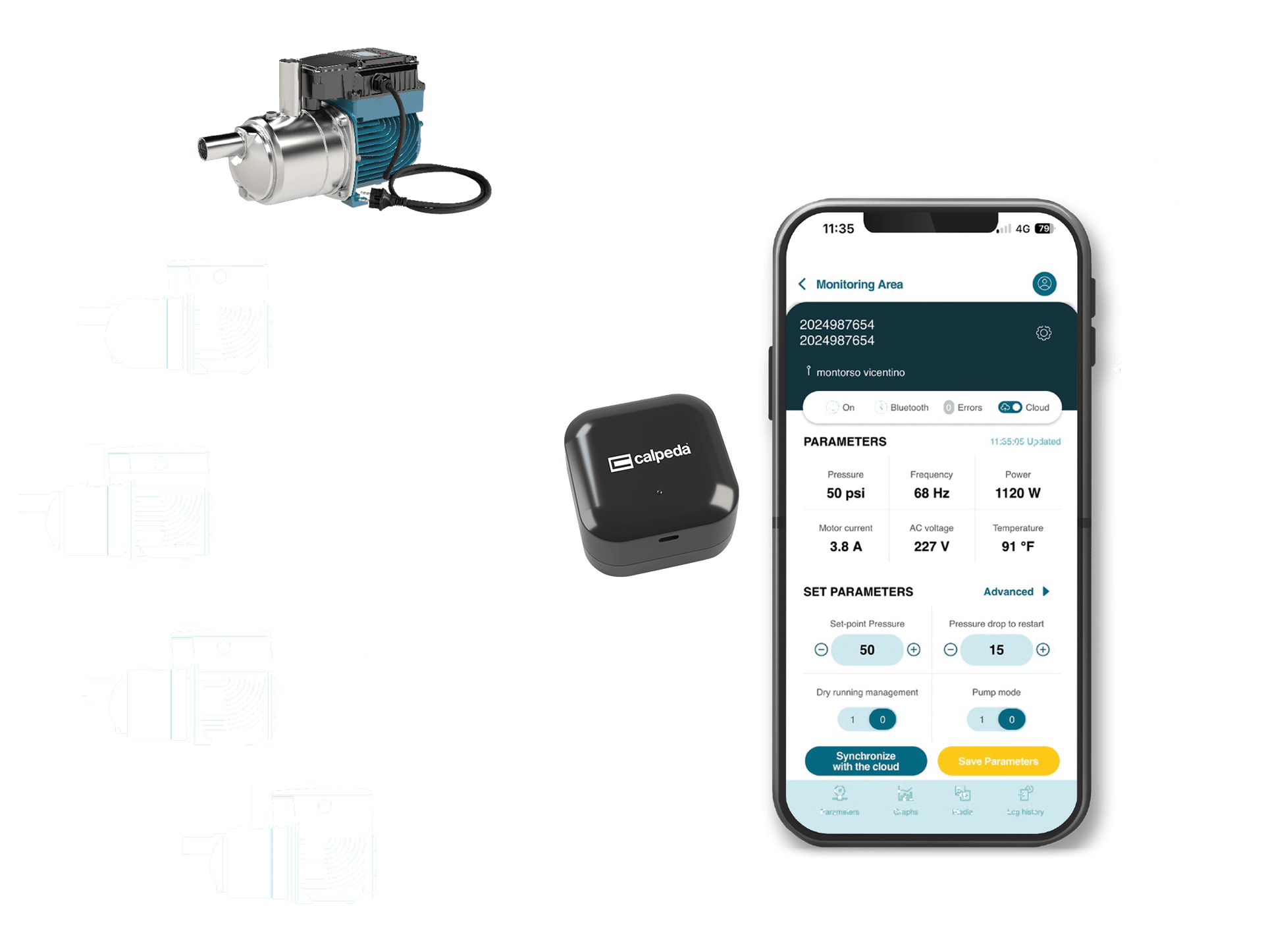
Calpeda Flow empowers installers and pump users
Whether you’re an installer ensuring optimal performance or an end-user seeking reliable operation, Calpeda Flow puts vital pump data at your fingertips, empowering you to maximize efficiency and minimize downtime.
Unlock Remote Monitoring with Cloud Connectivity
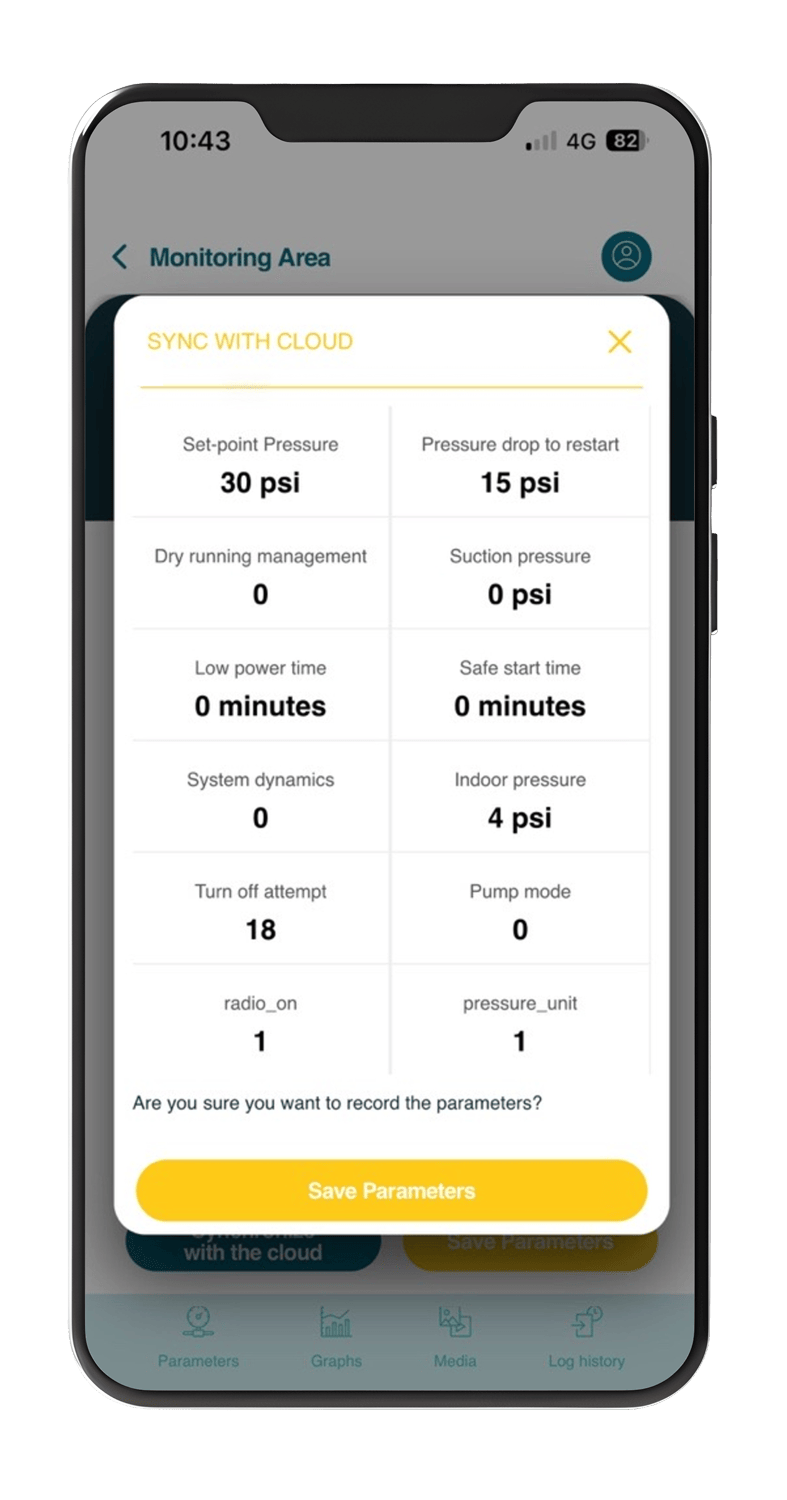
Transform your smartphone into a powerful remote monitoring tool with Calpeda Flow’s Cloud function, enabling seamless data transmission and reception for convenient oversight and efficient support from anywhere.
Proactive Maintenance with Intelligent Alerts
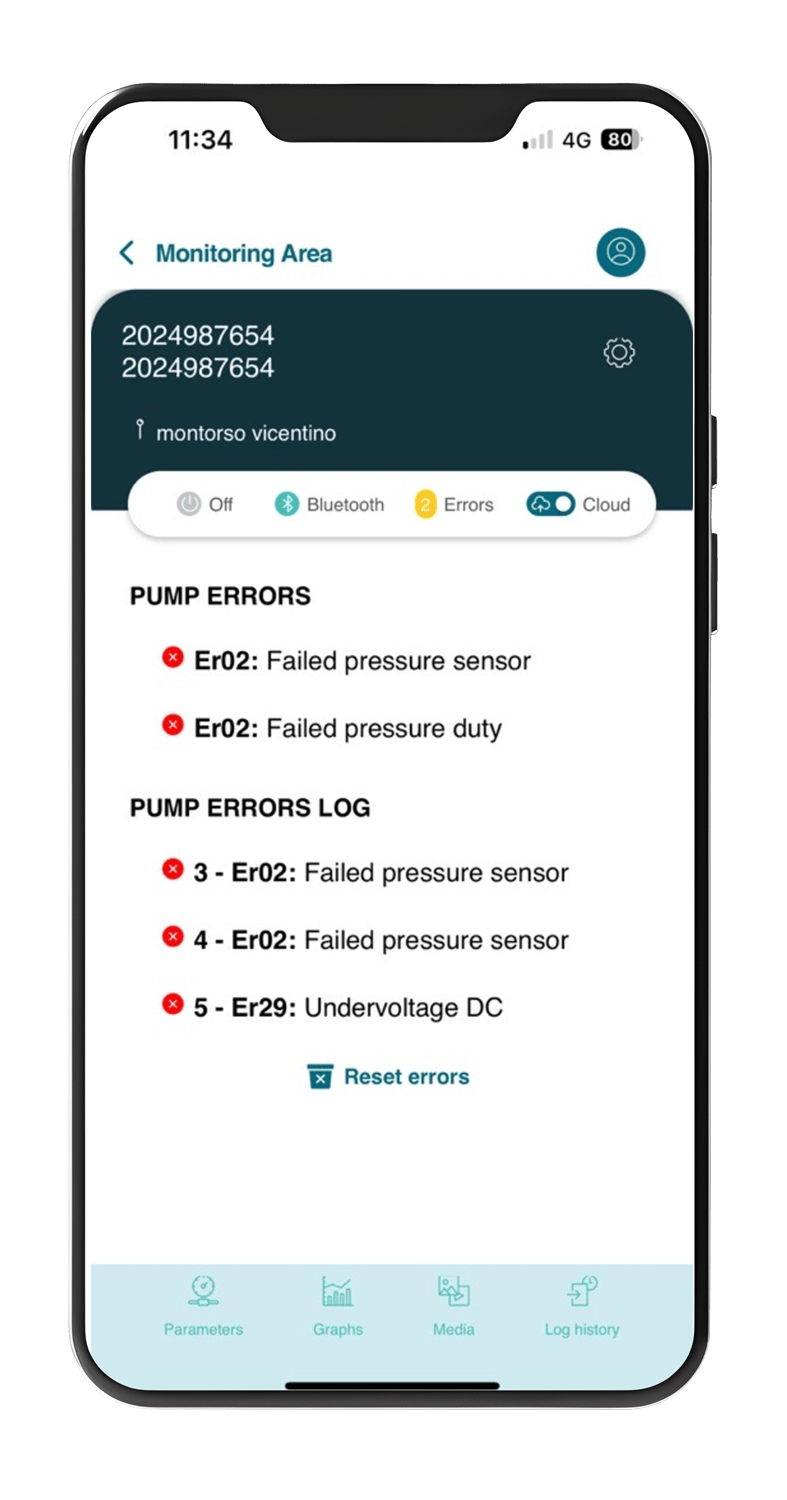
Stay ahead of system issues with a dedicated fault and warning log, providing a comprehensive, time-stamped history of alarms for swift analysis and continuous, reliable performance.
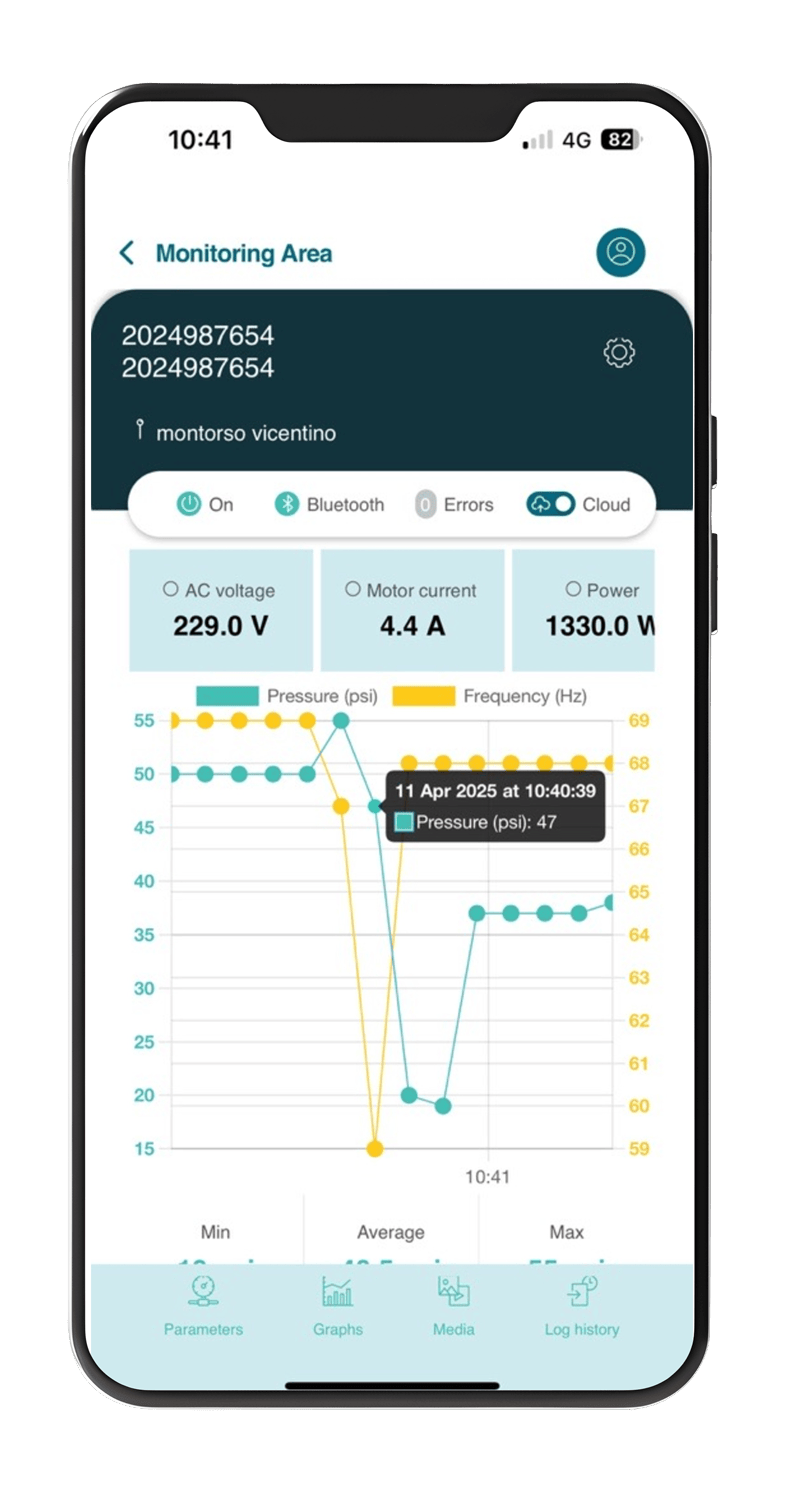
Visualize Performance with Dynamic Charts
Analyze pump performance and identify trends with interactive charts that visualize up to two parameters simultaneously, offering detailed, time-stamped data with a simple tap.
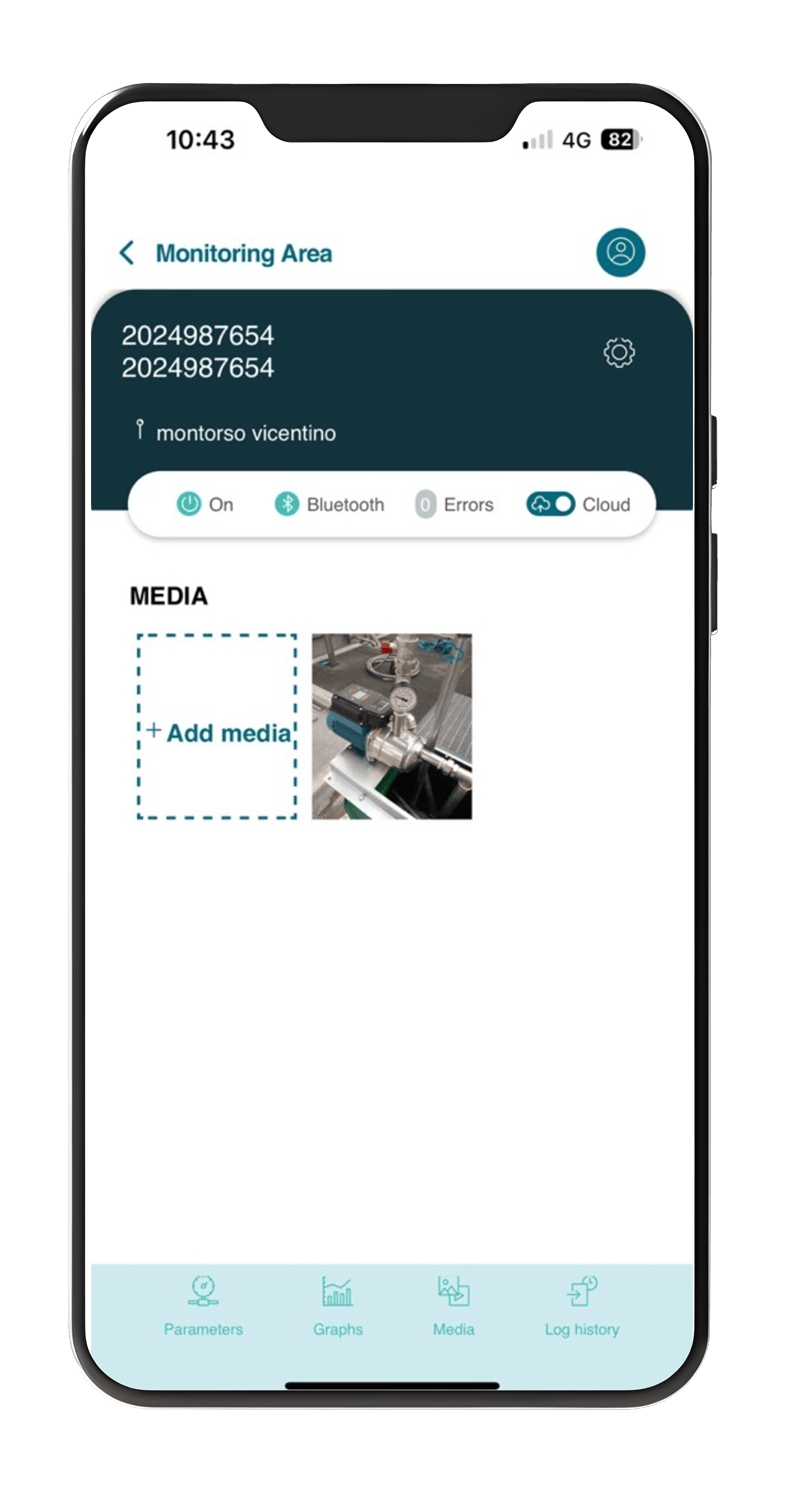
Streamlined Support with Integrated Media Sharing
Streamline communication and accelerate troubleshooting with the app’s dedicated Media page, enabling seamless sending and receiving of media for faster issue resolution.
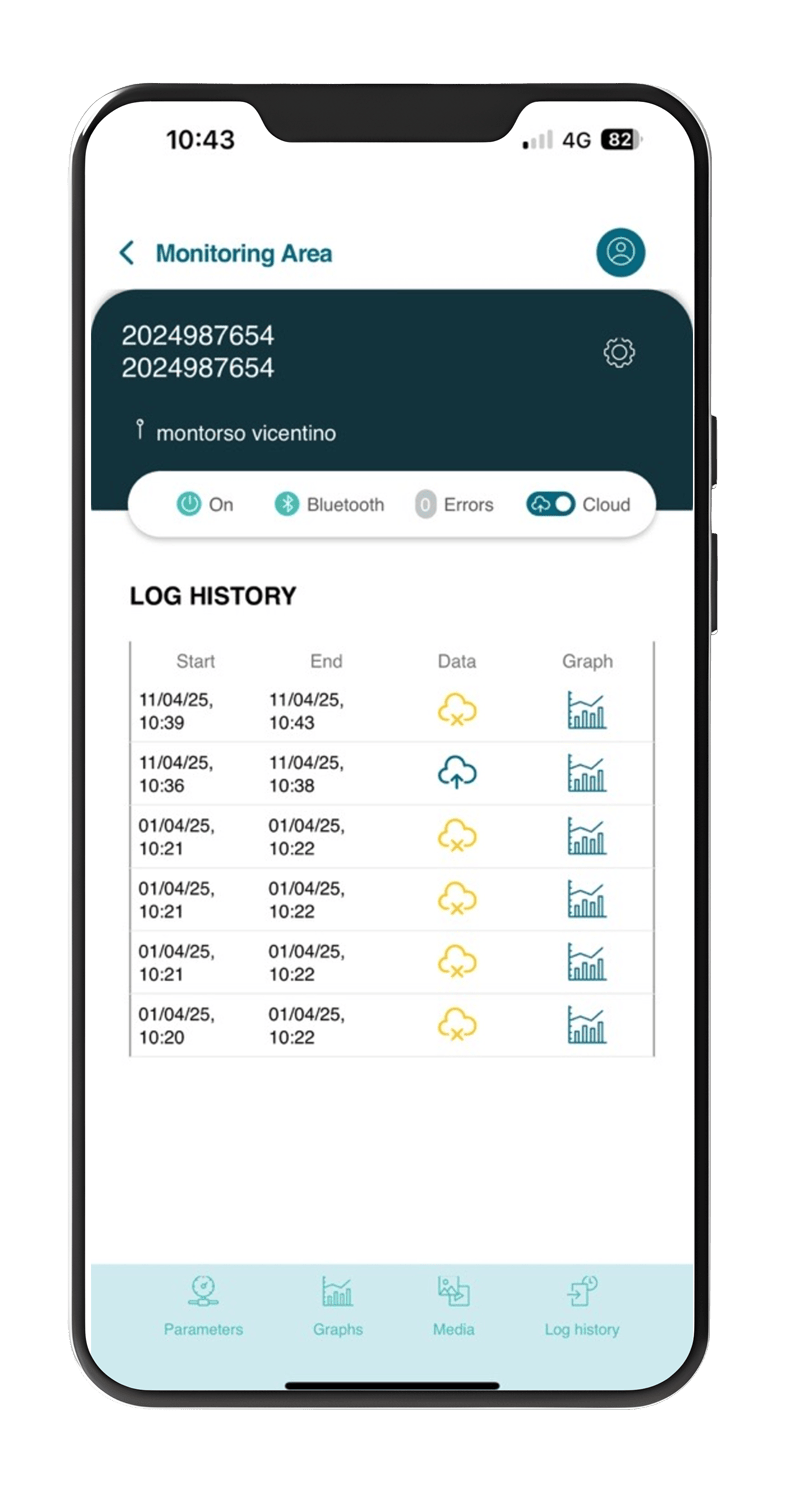
Historical Data at Your Fingertips with Event Logs
Access saved performance charts anytime via the intuitive Event Log screen, providing a readily available historical record for consistent, detailed pump monitoring.
Real-Time insights, right in your hand
Calpeda Flow provides a clear and instant overview of your pump’s status, displaying:
Current Operating State
Know immediately if your pump is running, on standby, or in a fault condition.
Real-Time Pressure Readings
Monitor the current pressure of your system directly from your mobile device.
Energy Consumption
Keep track of power usage to optimize efficiency and identify potential issues.
Discover Calpeda FLOW
Get clear real-time insights, intelligent alerts, and full remote control of your pump systems — all from your mobile device. Download the brochure and explore how to boost efficiency and reliability.
Download our brochure


Contact us
Do you need more information? Our team is happy to help. For more information, see our FAQ section
GETTING STARTED AND PUMP REGISTRATION
What is the Calpeda Flow app?
The Calpeda Flow app is a simple and intuitive tool designed to monitor and remotely manage your Calpeda devices directly from your smartphone. It acts as a central control and monitoring hub for your pumps.
What are the main advantages of using the Calpeda Flow app?
The Calpeda Flow app offers several key benefits:
- Real-time monitoring of status, pressure, and energy consumption.
- Graphical analysis to review and study operating parameters.
- Historical logs of all alarms and events.
- Cloud connectivity for comprehensive remote monitoring and control.
- Media sharing function to quickly provide visual information for service assistance.
Where can I download the Calpeda Flow app?
The application is available for download on both the Play Store (Android) and the Apple Store (iOS).
Does the app work with all pump models?
The search function is specifically designed to locate and work only with Calpeda devices. Other devices are filtered out automatically.
How do I log in to the Calpeda Flow app?
You must first use your existing account credentials to log in to the application.
What is the process for adding a new pump to the app?
After logging in, tap the “Add new pump” tile. You’ll then be prompted to enter essential information, such as the “Customer Name” and “Location”.
How does the app locate pumps for registration?
Press “Find nearby pumps” to begin the search. The app is designed to only detect and show Calpeda devices; all other nearby devices are filtered out automatically.
What steps should I take after finding nearby pumps?
Once nearby pumps are listed, you need to start the scanning process and then select the specific pump you wish to add to your account from the scanned list.
Do I need to provide customer information before searching for pumps?
Yes, you must input the “Customer Name” and “Location” details before the app can successfully search for and find nearby pumps.
MAIN SCREEN AND OPERATIONAL PARAMETERS
What kind of real-time operational data can I view on the main page?
The main page displays real-time operational parameters including the current pressure, absorbed power and current, and the mains voltage.
What are the possible operating statuses shown for a pump?
The pump status can be indicated as Run, Standby, Off, or Error.
How do I enable Cloud communication for my pump?
You can activate Cloud communication by pressing the corresponding Cloud button. This allows the data transmitted to the app to be stored for remote management in case of faults or malfunctions.
What are "Advanced" parameters, and who can modify them?
Advanced parameters are settings that can only be modified remotely by qualified personnel. This restriction ensures only authorized experts make critical system changes.
How can I synchronize modified Cloud parameters to the pump?
Press the “Synchronize with cloud” icon to transfer any parameters that have been modified within the Cloud back to the physical pump.
DATA VISUALIZATION AND HISTORY
Where can I view the real-time operational parameters in a graphical format?
Tap the “Graphs” icon to view the available real-time parameters displayed as charts.
How can I pinpoint a specific data point on the graphs?
By clicking directly on the graph, you can view the exact value and the date/time of a particular parameter. This is useful for monitoring specific behaviors at a given moment.
How can I review the historical operation of a pump?
The “Log history” screen allows you to view the stored graphs, providing you with a historical record of the pump’s operational performance over time.
What is the purpose of the "Media" screen?
The “Media” screen is where you can upload and attach photos of the pump or its installation system. This feature is particularly helpful for service technicians to understand and diagnose any potential anomalies.
ERRORS AND PUMP INFORMATION
How do I check for current and past errors on the pump?
Click the “Errors” icon to view both the active errors currently affecting the pump and the stored errors from previous events.
Can I clear active errors from the app?
Yes, you can clear all active errors by clicking the “Reset errors” icon on the errors page.
Where can I find the general information about my pump?
Press the icon representing a gear to access the general pump information page.
What specific details are available on the pump information page?
The information page displays crucial details such as the pump’s Serial number and model, the installation location, the current Firmware Version, and options for bar/psi unit conversion.



.png)


